Why typing cards by hand goes wrong
Typing a card into your phone is slow, and the mistakes are quiet. One wrong digit in a mobile number, a company name left blank, a designation skipped because you were in a hurry. You find out months later when the call goes to a stranger.
The other cost is that it does not get done. A stack of cards waits for a free evening that does not come, and the contacts you meant to keep stay on paper.
Scan, review, save
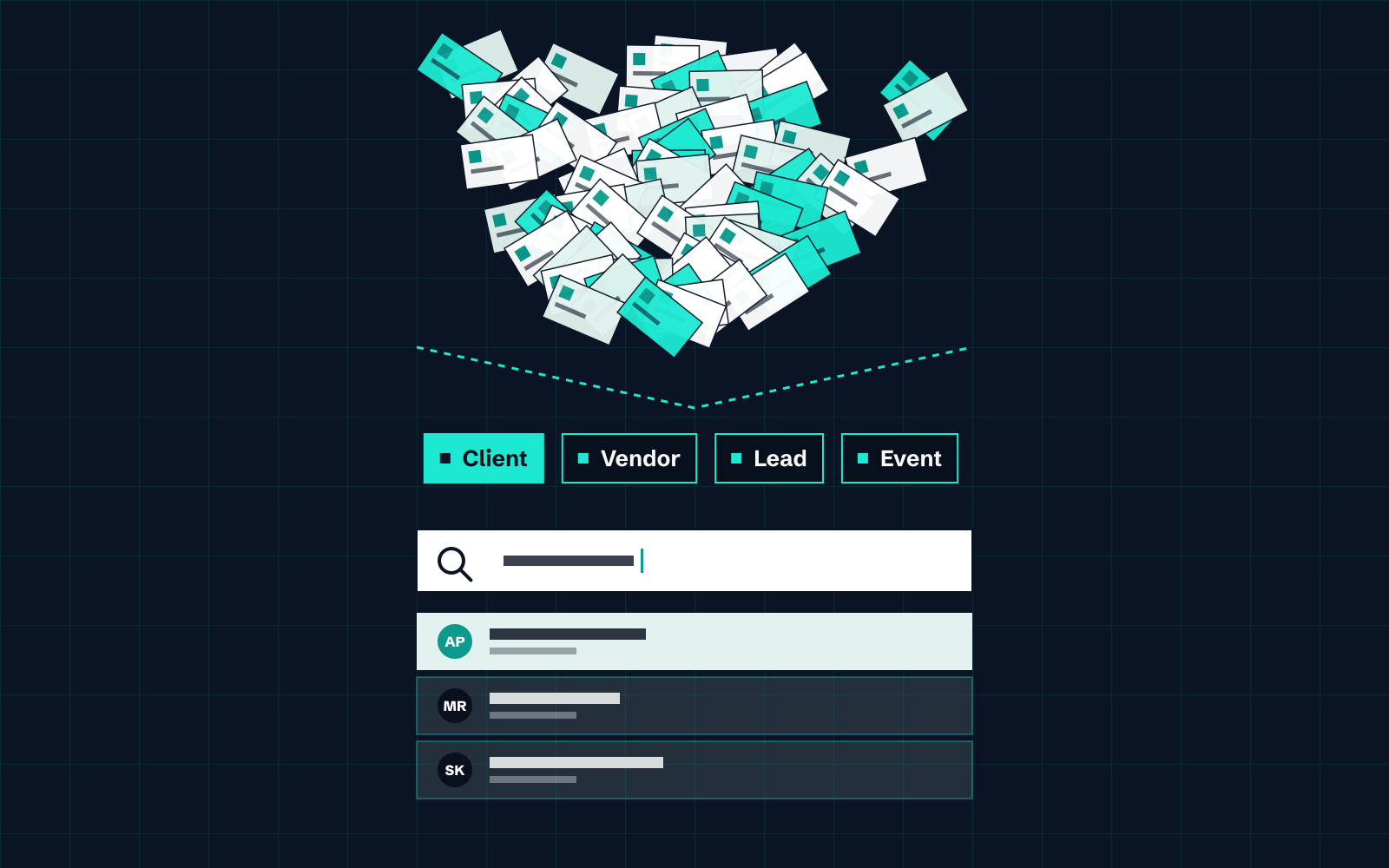
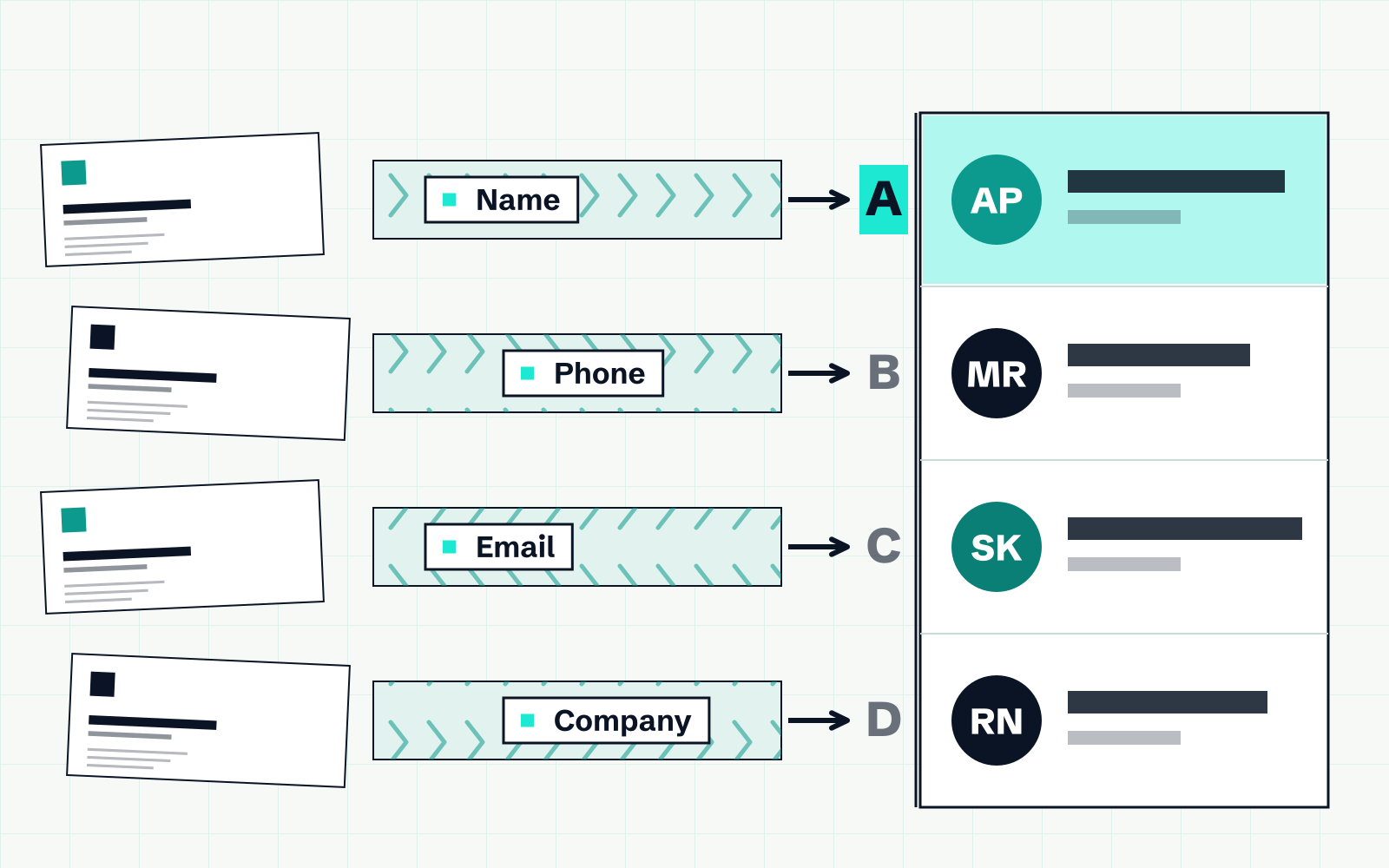
- Scan the card. Lay it flat in good light and fit it inside the frame. Cardenius reads the printed text and fills in name, company, designation, phone, email and address.
- Review the fields. Cardenius shows the extracted fields so you can review and correct them before saving. Check the phone number and email first.
- Save the contact. It is stored in Cardenius, where you can add a category and a note.
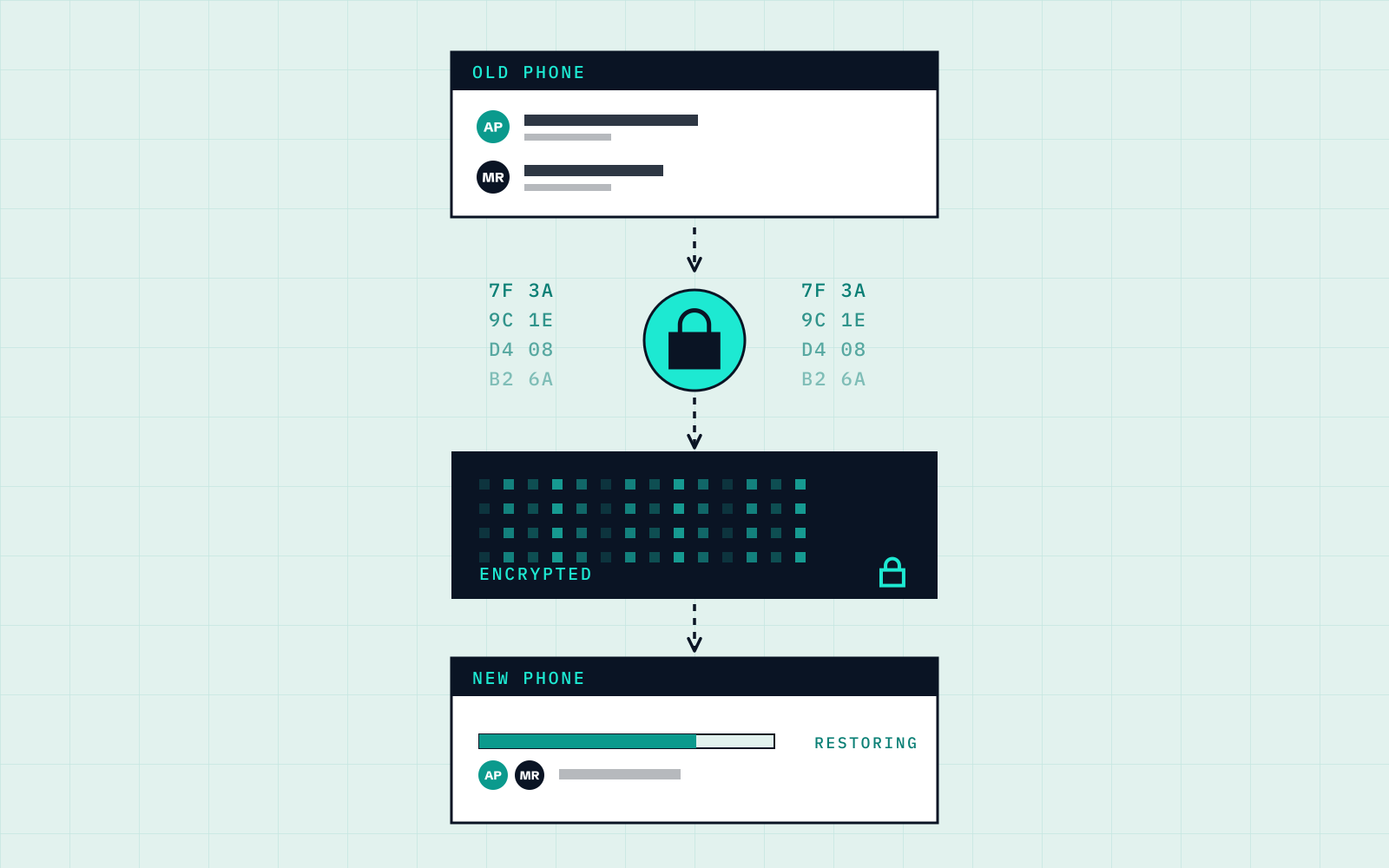
- Move it into your phone’s Contacts app. Export a vCard on a plan with export enabled, then import it in Contacts.
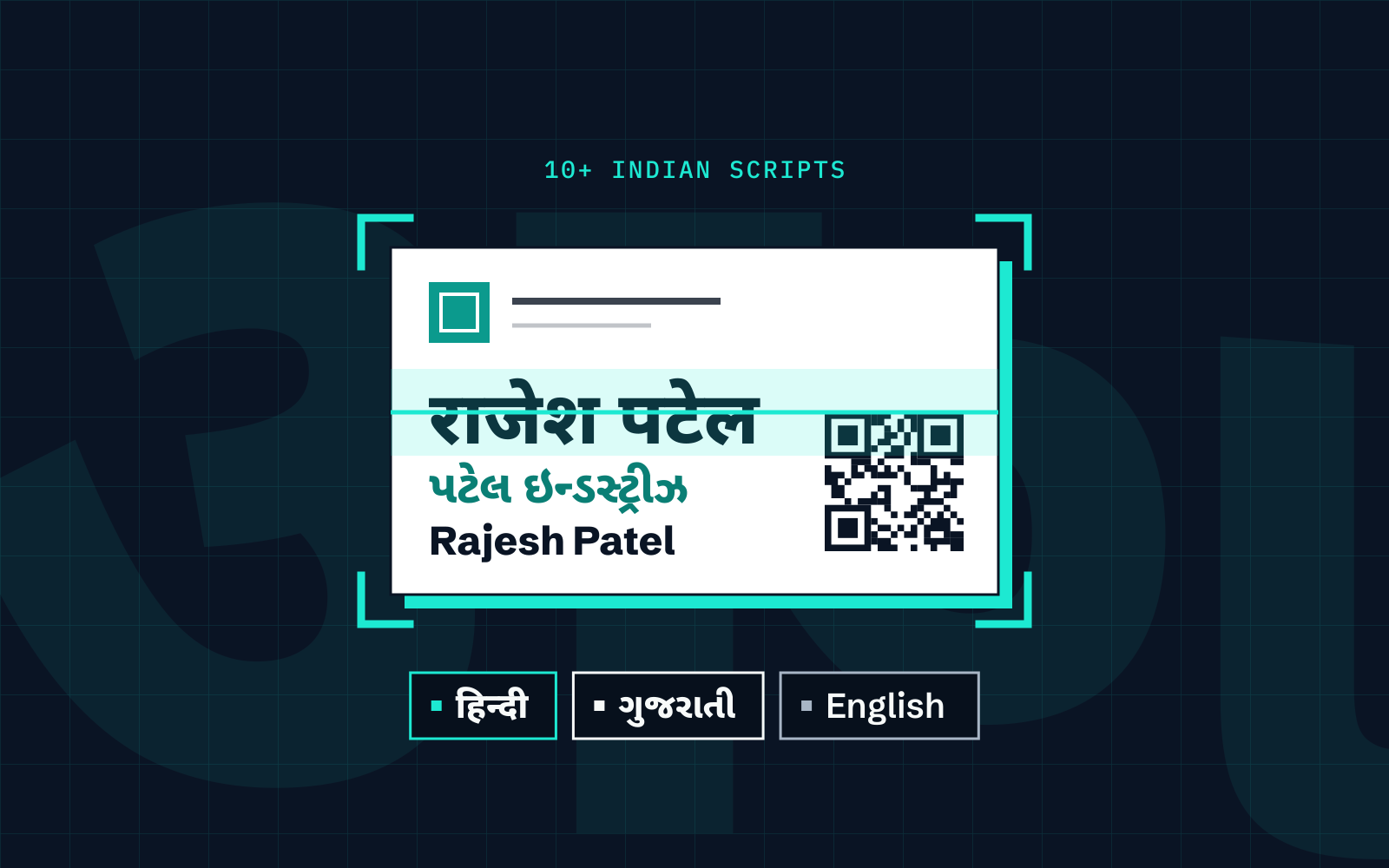
If the card is in Hindi, Gujarati or another Indian script, the same steps apply. See the multilingual scanning guide. No signal? The offline guide covers scanning without a connection.
Getting a cleaner scan
Most wrong fields trace back to the photo. A few habits remove most of the problems:
- Use even light. Avoid a shadow from your hand or the phone. If the card is glossy, tilt it slightly to cut the glare.
- Put it on a plain, contrasting surface. A white card on a white desk is harder to frame than a white card on a dark one.
- Keep the card flat and square to the phone. A tilted card blurs the small print along one edge.
- Hold still for a moment. A sharp photo reads better than a fast one.
Cards with unusual fonts, very small print or coloured backgrounds still take more review. That is normal, and it is why the review step exists.
Cards that need a closer look
Some cards need more attention at the review stage:
- Several phone numbers. Check that the mobile number is in the mobile field and that the country code is right.
- Two languages. Cardenius reads 100+ languages, so a card with a regional script and English can be read together. Check both versions of the name.
- Cards with a logo in place of text. A company name inside a logo may be missed. Type it in if so.
Getting contacts into your phone’s Contacts app
Saved-contact export supports vCard, CSV and Excel; it is not available on Free. Use vCard with a compatible Contacts app. Importing phone contacts into Cardenius is a separate workflow. CSV and Excel suit spreadsheets or other import tools.
| Format | Best for |
|---|---|
| vCard | Importing into your phone’s Contacts app or an email app |
| CSV | Importing into another contacts tool, or a spreadsheet |
| Excel | Reviewing or sharing a list in a spreadsheet |
Keep contacts easy to find
A saved contact is only useful if you can find it again. Three habits cover most of it:
- Use the right fields. Keep the company in the company field and the role in the designation field, not in the name.
- Note where you met. “Pune expo, March, interested in a demo” is worth more than a perfect name.
- Use a category. The Free plan includes 3 categories. Customers, suppliers and partners is an easy starting split.
Cardenius search works on what you saved, including bilingual search for contacts with native-script and English names. The guide to organizing hundreds of cards goes further.
Avoid duplicates
If some of these people are already in your phone, check before you import. Most phone Contacts apps offer a merge tool for duplicates, and a quick look at the import preview takes less time than cleaning up afterwards.
What the Free plan covers
The Free plan includes up to 50 contacts and 5 AI scans a day. If you are working through a larger stack, Premium has unlimited contacts and scans, and Batch Scan.
Key takeaways
- Scanning reduces manual typing. Reviewing the fields helps catch mistakes before saving.
- Export saved contacts as vCard to bring them into your phone’s Contacts app. CSV and Excel are also available.
- PDF is for sharing your own Digital Card, not for exporting saved contacts.
- Add a category and a note while you remember the conversation.
Frequently asked questions
Can I save a card without typing anything?
Yes. Scan the card, review the extracted fields and save. You only type when you want to correct a field or add a note.
Which formats can I export saved contacts in?
vCard, CSV and Excel; not available on Free.
Is PDF an export format for contacts?
No. PDF is a format for sharing your Digital Card. Saved contacts export as vCard, CSV or Excel.
How many contacts can I save for free?
Up to 50 on the Free plan. Premium has unlimited contacts.
Do I have to scan cards one at a time?
On the Free plan, yes. Premium includes Batch Scan for larger stacks.