Where scanning without a connection comes up
Cards change hands in the places with the weakest networks. An exhibition hall puts thousands of phones on the same mobile towers. A plant visit puts you behind thick walls. A trip abroad often means mobile data is switched off to avoid roaming charges. A flight can hand you three hours of conversation with the person in the next seat and no signal at all.
If a scanner needs a server for every card, those cards stay in your pocket until you are back online, and by then some have been forgotten. The useful question is which parts of the workflow still run when the connection drops, and which ones wait.
On-device recognition and online AI recognition
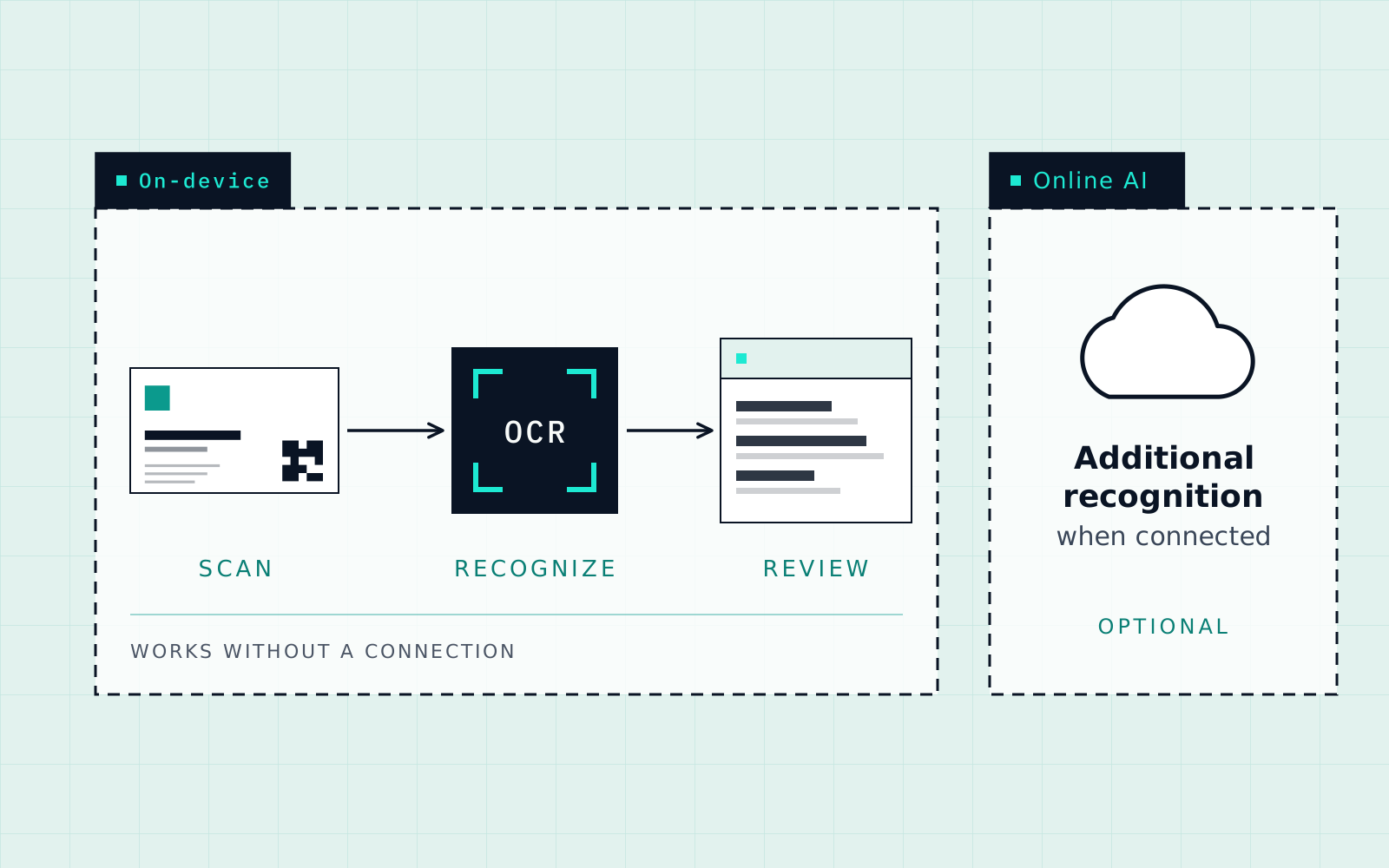
Cardenius can use on-device recognition when you are offline. When connectivity is available, online AI recognition can provide an additional recognition option.
Treat them as options with different conditions. Review the extracted fields before saving. A connection makes online AI recognition available; it does not replace your review.

What needs a connection and what doesn’t
| Task | Needs a connection? |
|---|---|
| On-device recognition of a card photo | No |
| Additional online AI recognition | Yes |
| Sharing a card or message on WhatsApp | Yes, because WhatsApp itself needs one |
| Encrypted cloud backup (Premium) | Yes, because the backup goes to the cloud |
If you depend on a feature that is not in this table, test it in airplane mode before an important trip.
Three situations, three approaches
On a flight
Put the phone in airplane mode and scan the cards you collected in the lounge or from the person beside you. Review each contact while the conversation is fresh in your mind, and leave anything that needs a connection, such as sending a message, until you land.
In a crowded exhibition hall
Signal in a packed hall is often poor even when the phone shows bars. Scan and save as you go, so the cards do not pile up in your pocket. The visiting card guide for Indian businesses covers the wider event workflow.
Abroad with data switched off
If you have turned off mobile data to avoid roaming charges, scanning with on-device recognition still works. Wait for a hotel or office network before you back up or send anything.
A routine that works on the road
- Test before you travel. Switch on airplane mode, scan one card and save it. It takes a minute and tells you exactly how the app behaves for you.
- Capture carefully. Lay the card flat in good light and line it up in the frame. A sharp photo helps recognition whether you are online or offline.
- Review before you move on. Cardenius shows the extracted fields so you can review and correct them before saving. Check the phone number and email first, since those are the fields you will act on.
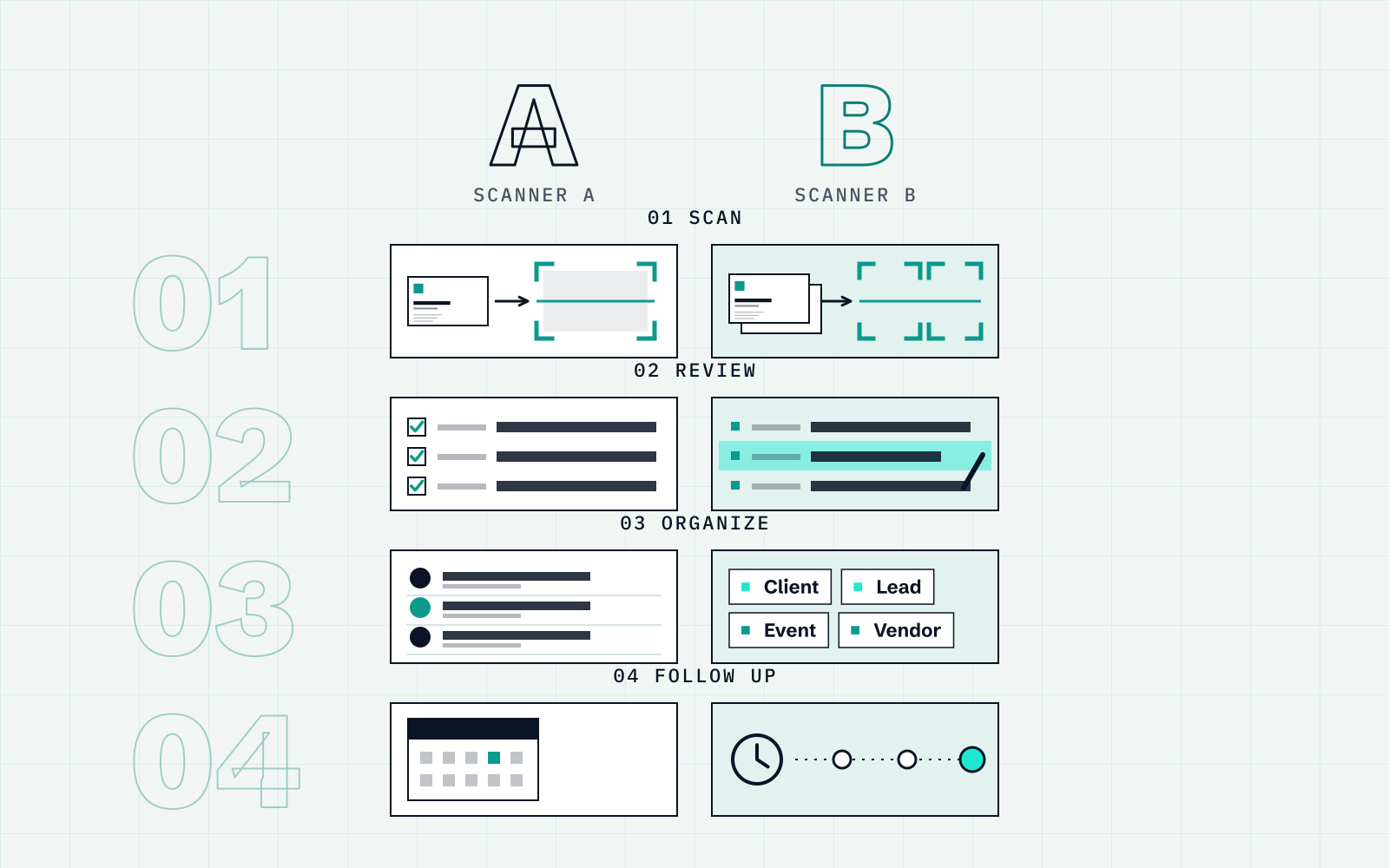
- Add context while it is fresh. Put the contact in a category and add a note about what you discussed. The Free plan includes 3 categories, and notes are there for the details you would otherwise forget by evening.
- Back up when you are connected. Premium includes encrypted cloud backup. Saved-contact export supports CSV, Excel and vCard, but is not available on Free. The backup guide covers both.
Where to be careful
No recognition is perfect, online or on-device. Decorative fonts, glossy finishes, low contrast and very small print all raise the chance of a wrong character. Treat the result as a first draft and read the key fields every time.
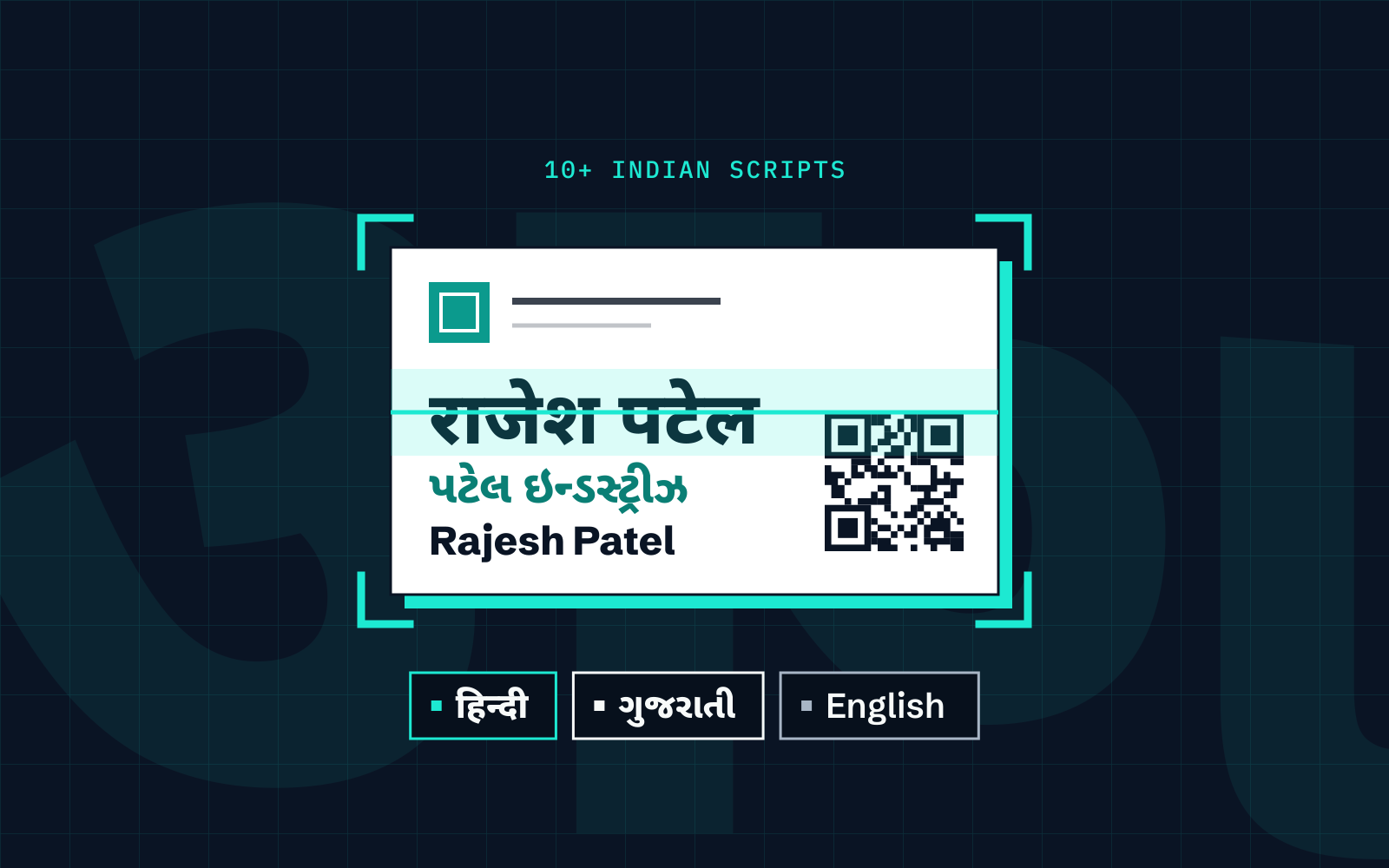
Cards in Hindi, Gujarati and other scripts deserve extra attention. Cardenius supports 100+ languages overall; exact offline script coverage is not confirmed here. Scan a card in the script you use most, in airplane mode, before relying on it. The multilingual scanning guide explains how to review those cards.
Before a trip: a two-minute check
- Scan one card in airplane mode and save it, to confirm the behaviour on your phone.
- Check how many contacts you have saved. The Free plan holds up to 50, and the 15-day trial is capped at 50 contacts or cards.
- Make a backup or export so that nothing already saved is only on the phone.
- Decide your categories ahead of time, so you can assign them in the moment.
After the trip: from saved cards to usable contacts
Once you are back on a connection, give the saved contacts a quick pass: correct anything you flagged, assign categories, and add reminders for the follow-ups that matter. To get them into your phone’s Contacts app, read how to save business cards to your phone contacts.
Key takeaways
- On-device recognition lets you scan offline. Online AI recognition can provide an additional option when connected.
- WhatsApp sharing and encrypted cloud backup need a connection, so plan to do them when you are back online.
- Test your own cards in airplane mode before you rely on offline scanning, especially for regional scripts.
- Review the extracted fields before saving. Cardenius lets you correct them on the spot.
Frequently asked questions
Can I scan business cards on a flight?
Yes. On-device recognition does not need a connection, so you can scan in airplane mode. Send messages and back up when you land.
Which Cardenius features need internet?
Online AI recognition, sharing on WhatsApp and encrypted cloud backup need a connection. On-device recognition does not.
Does offline scanning work for Hindi and Gujarati cards?
Overall Indian-script support does not establish exact offline coverage. Test your own cards in airplane mode before relying on recognition for a particular script.
Will I lose cards I scanned offline?
Contacts you review and save are stored in the app. Premium includes encrypted cloud backup. CSV, Excel and vCard exports are not available on Free.
Is offline scanning as accurate as online?
No scanner reads every card perfectly, and results can vary between recognition methods. That is why Cardenius shows the extracted fields for you to review and correct before saving.